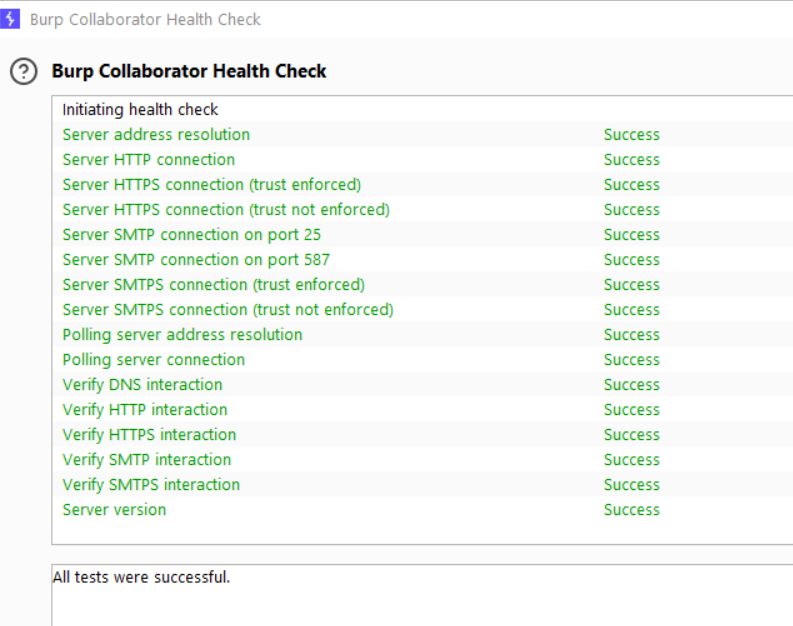
To protect clients, setting up a private Collaborator Server is an important step before any out of band web security testing.
Considering the number of hours I spent researching the correct DNS settings, I have written a short guide to make life easier…
For hosting, a digital ocean droplet was chosen.
By default, all ports are open, but you can easily assign a Firewall on Digital Ocean with the ports you need open to restrict access to your server.
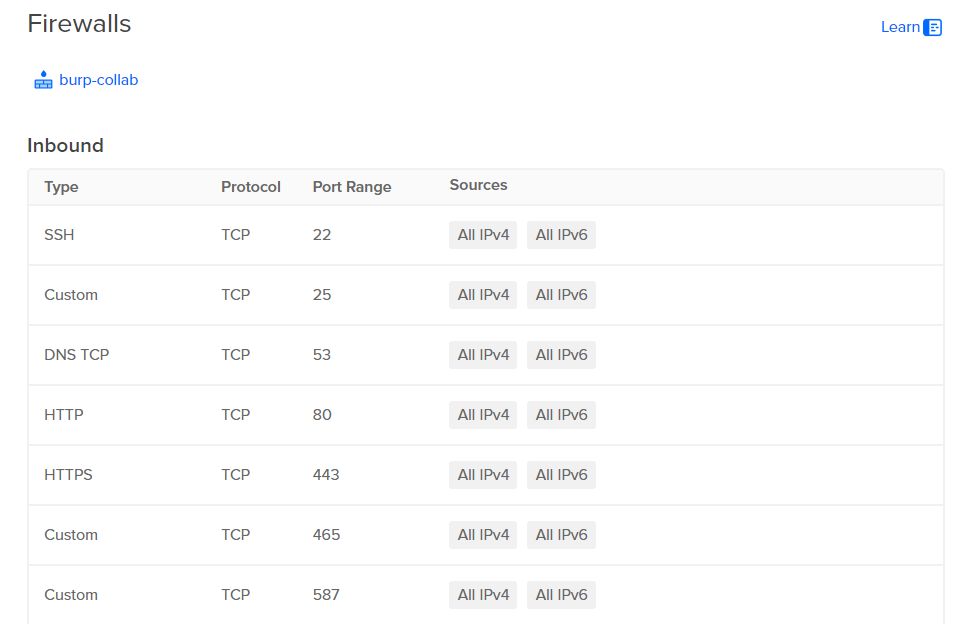
You can find it in networking tab for your droplet
Commands to run inside your droplet. SSH into your droplet.
apt-get update
apt-get install default-jre
mkdir -p /usr/local/collaborator/
Download the burp installation file
curl '<https://portswigger-cdn.net/burp/releases/download?product=pro&version=2024.5.5&type=Jar>' -H 'accept: text/html,application/xhtml+xml,application/xml;q=0.9,image/avif,image/webp,image/apng,*/*;q=0.8,application/signed-exchange;v=b3;q=0.7' -H 'accept-language: en-US,en;q=0.9' -H 'priority: u=0, i' -H 'referer: <https://portswigger.net/>' -H 'sec-ch-ua: "Not/A)Brand";v="8", "Chromium";v="126", "Google Chrome";v="126"' -H 'sec-ch-ua-mobile: ?0' -H 'sec-ch-ua-platform: "Windows"' -H 'sec-fetch-dest: document' -H 'sec-fetch-mode: navigate' -H 'sec-fetch-site: cross-site' -H 'sec-fetch-user: ?1' -H 'upgrade-insecure-requests: 1' -H 'user-agent: Mozilla/5.0 (Windows NT 10.0; Win64; x64) AppleWebKit/537.36 (KHTML, like Gecko) Chrome/126.0.0.0 Safari/537.36' -o burp.jar
Create a configuration file (nano /usr/local/collaborator/collaborator.config) according to the below.
{
  "serverDomain" : "SUBDOMAIN.DOMAIN.com",
  "workerThreads" : 10,
  "eventCapture": {
      "localAddress" : [ "PUBLIC IP OF DROPLET" ],
      "publicAddress" : "PUBLIC IP OF DROPLET",
      "http": {
         "ports" : 80
       },
      "https": {
          "ports" : 443
      },
      "smtp": {
          "ports" : [25, 587]
      },
      "smtps": {
          "ports" : 465
      },
      "ssl": {
          "certificateFiles" : [
              "/usr/local/collaborator/keys/privkey.pem",
              "/usr/local/collaborator/keys/cert.pem",
              "/usr/local/collaborator/keys/fullchain.pem" ]
      }
  },
  "polling" : {
      "localAddress" :  "PUBLIC IP OF DROPLET",
      "publicAddress" :  "PUBLIC IP OF DROPLET",
      "http": {
          "port" : 39090
      },
      "https": {
          "port" : 39443
      },
      "ssl": {
          "certificateFiles" : [
              "/usr/local/collaborator/keys/privkey.pem",
              "/usr/local/collaborator/keys/cert.pem",
              "/usr/local/collaborator/keys/fullchain.pem" ]

      }
  },
  "metrics": {
      "path" : "RAMDOM 16 CHAR STRING",
      "addressWhitelist" : ["0.0.0.0/1"]
  },
  "dns": {
      "interfaces" : [{
          "name":"ns1.SUBDOMAIN.DOMAIN.com",
          "localAddress":"PUBLIC IP OF DROPLET",
          "publicAddress":"PUBLIC IP OF DROPLET"
      }],
      "ports" : 53
   },
   "logLevel" : "INFO"
}
The addressWhitelist will restrict access to metrics to your IP if you so desire.
Create a configure_certs.sh file:
nano /usr/local/collaborator/configure_certs.sh
CERTBOT_DOMAIN=$1
if [ -z $1 ];
then
    echo "Missing mandatory argument. "
    echo " - Usage: $0  <domain> "
    exit 1
fi
CERT_PATH=/etc/letsencrypt/live/$CERTBOT_DOMAIN/
mkdir -p /usr/local/collaborator/keys/

if [[ -f $CERT_PATH/privkey.pem && -f $CERT_PATH/fullchain.pem && -f $CERT_PATH/cert.pem ]]; then
        cp $CERT_PATH/privkey.pem /usr/local/collaborator/keys/
        cp $CERT_PATH/fullchain.pem /usr/local/collaborator/keys/
        cp $CERT_PATH/cert.pem /usr/local/collaborator/keys/
        chown -R collaborator /usr/local/collaborator/keys
        echo "Certificates installed successfully"
else
        echo "Unable to find certificates in $CERT_PATH"
Cfi
Create the SSL certificates, run:
./certbot-auto certonly -d SUBDOMAIN.domain.com -d *.SUBDOMAIN.subdomain.com --server <https://acme-v02.api.letsencrypt.org/directory> --manual --agree-tos --no-eff-email --manual-public-ip-logging-ok --preferred-challenges dns-01
Insert your e-mail during certificate generation.
You will get a message on how to deploy a DNS TXT record. Press Enter to get a second message.
Go to GoDaddy and add 2 DNS TXT records with the _acme-challenges.SUBDOMAIN and the message.

txt records
Wait 10–15minutes.
Constantly check with dig to see if your text records are found.
Then press Enter for validation and the certificates are generated.
Great. You now have certificates. To copy them to your working directory:
chmod +x /usr/local/collaborator/configure_certs.sh && /usr/local/collaborator/configure_certs.sh SUBDOMAIN.domain.com
Check if your collaborater server runs correctly:
bash -c  "java -Xms10m -Xmx200m -XX:GCTimeRatio=19 -jar /usr/local/collaborator/burpsuite_pro_1.7.33.jar --collaborator-server --collaborator-config=/usr/local/collaborator/collaborator.config"
2018-04-08 19:46:36.082 : Using configuration file /usr/local/collaborator/collaborator.config
2018-04-08 19:46:37.473 : Listening for DNS on 54.38.**.**:3353
2018-04-08 19:46:37.486 : Listening for HTTP on 54.38.**.**:39090
2018-04-08 19:46:37.486 : Listening for SMTP on 54.38.**.**:3325
2018-04-08 19:46:37.487 : Listening for HTTP on 54.38.**.**:3380
2018-04-08 19:46:37.486 : Listening for SMTP on 54.38.**.**:33587
2018-04-08 19:46:37.600 : Listening for SMTPS on 54.38.**.**:33465
2018-04-08 19:46:37.600 : Listening for HTTPS on 54.38.**.**:39443
2018-04-08 19:46:37.602 : Listening for HTTPS on 54.38.**.**:33443This guide will show you what DNS records to put on GoDaddy. I have tried Namecheap but with no success.
Ctrl + C.
Create the DNS records, here is what was used on GoDaddy:
+-----------+---------------------------+----------------------------+
|   type    |       name                |     data                   |
+-----------+--------------------+-----------------------------------+
| A         | subdomain                 | DROPLET IP                 |
| A         | ns1.subdomain             | DROPLET IP                 |
| NS        | subdomain                 | ns1.subdomain.domain.com   |
| TXT       | _acme-challenge.subdomain | XXXXXXXXXXXXXXXXXXXX       |
| TXT       | _acme-challenge.subdomain | XXXXXXXXXXXXXXXXXXXX       |
+-----------+--------------------+-----------------------------------+
Once done, you can re-run the Collaborator but as a service for persistence.
Create a file called collaborator.service
sudo nano /etc/systemd/system/collaborator.service
Copy the configuration below:
[Unit]
Description=Burp Collaborator Server Daemon
After=network.target
[Service]
Type=simple
User=collaborator
UMask=007
ExecStart=/usr/bin/java -Xms10m -Xmx200m -XX:GCTimeRatio=19 -jar /usr/local/collaborator/burpsuite_pro_1.7.33.jar --collaborator-server --collaborator-config=/usr/local/collaborator/collaborator.config
Restart=on-failure
# Configures the time to wait before service is stopped forcefully.
TimeoutStopSec=300
[Install]
WantedBy=multi-user.target
Enable the service:
systemctl enable collaborator
Finally, start the service:
systemctl start collaborator
Also, note if you mess up the config file, do stop, disable, and re-enable the service for the new config file to take effect.
Once the DNS records are UP, and the service is running:
systemctl status collaborator
Check with the DIG requests that the nameserver resolution is working with these:
dig subdomain.domain.com NS @8.8.8.8
dig ns1.subdomain.domain.com A @8.8.8.8 +trace
If you don’t see your DROPLET IP responding to the last dig, then the DNS collaborator service might be incorrectly setup, check your collaborator.config and disable/enable/start the collaborator service.
Once it responds, go to Burp > Settings > User or Burp > Settings > Project and modify the Collaborator section to Use a private collaborator server, entering your subdomain.domain.com you have chosen.
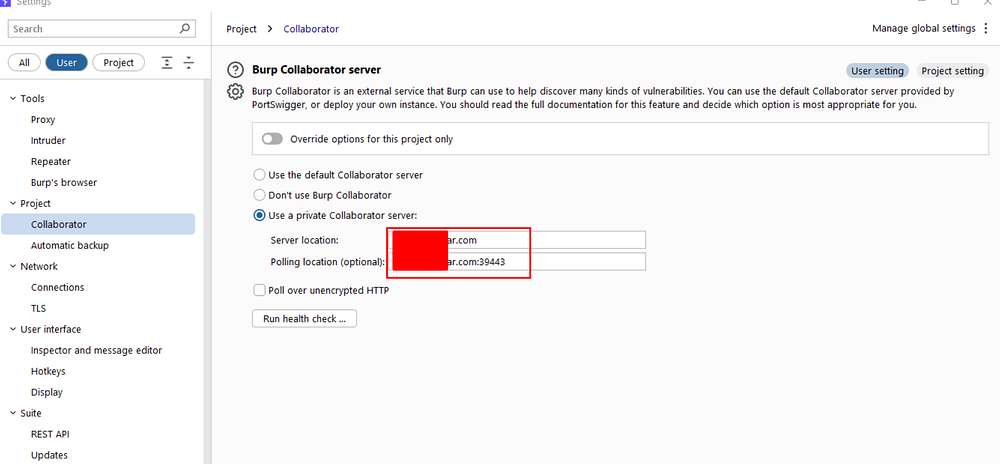
Run the health check and say Hurray!